Scorers' table · Home games
Technical instructions scorers' table
Playing a home game in the beautiful arena of Sportcentrum de Kooi soon? Or do you have to work the scorers' table? Then this page is handy to read back how all the technique in the Arena is organised. If you have questions, contact the people named on this page, or use the contact form.
Part 1 of 8
Music
Switching on the mixer
There is an on/off switch on the back of the mixer at the scorers' table.
Which channel is for what?
The mixer has 4 channels:
- A loose mini-jack connection (for example a laptop or phone).
- The DJ connection on the stand (RCA/tulip).
- The multimedia connection driving the LED screen.
- The scoreboard buzzer.
Agreement: don't change anything about the mixer's connections.
Note: don't turn the sound system up too loud — otherwise we get complaints from the neighbourhood. Normal volume is only used for the top senior teams' games.
Part 2 of 8
Scoreboard
Starting up
-
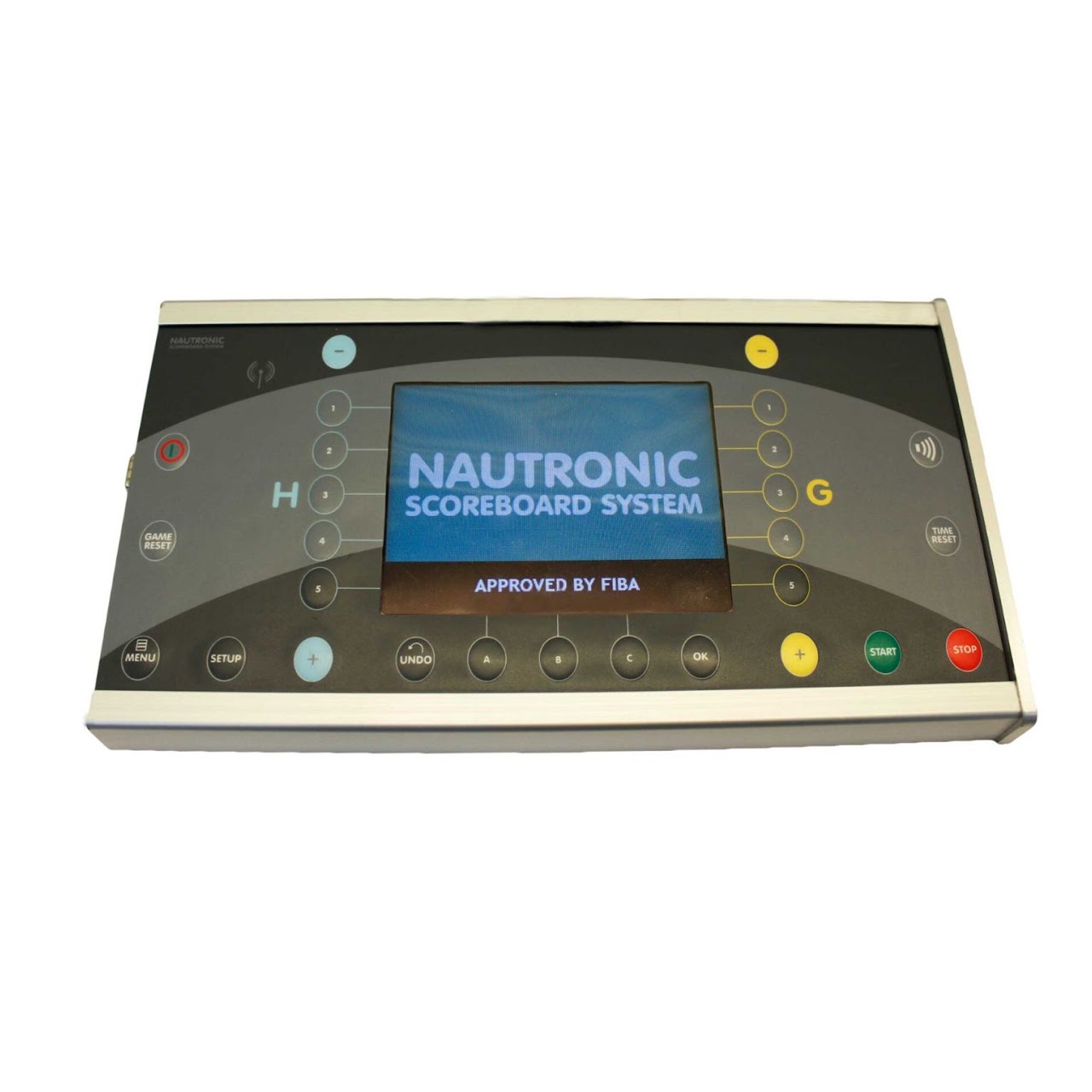
Switch on the scoreboard panel at the scorers' table (don't set anything yet).
- Switch on the computer (this stands under the stand, behind the scorers' table) — the password is on the passwords page.
- Start the scoreboard app and set up the screen for the game(s). Play: Starting the scoreboard app and setting up the screen (plays here once activated; without JavaScript the video opens on YouTube in a new tab)
- Optional: add the teams' logos. This step is not required. Play: Adding logos to the scoreboard (plays here once activated; without JavaScript the video opens on YouTube in a new tab)
- Only adjust the pre-time via the score panel at the scorers' table — never via the menu/setup. Play: Adjusting the pre-time on the score panel (plays here once activated; without JavaScript the video opens on YouTube in a new tab)
- Optionally import the names (by hand or via USB) so they appear on the screen. Play: Importing names on the scoreboard (plays here once activated; without JavaScript the video opens on YouTube in a new tab)
- Test the sound: press the horn button to the right of the score panel to check the buzzer (see also Music).
The scoreboard is fully programmed; nothing extra needs to be set during the game. Click start at the end of a period and the break or next period runs on its own.
Operating it during the game
- The red STOP and green START buttons operate the clock. TIME RESET speeds up the move to the next period.
- Blue is for the home team, yellow for the visitors: time-out, foul, 3 points, 2 points and 1 point (free throw) are added via the buttons of the matching colour — then pick the player.
- During a time-out the clock runs immediately; at 0:10 a signal sounds automatically. Always interrupt a time-out with the red STOP button.
- Made a mistake? The correction menu (button A) undoes any action — preferably do this while play is stopped.
Shutting down
Run through the start-up steps above in reverse order.
FAQ
No picture on the big LED screen?
The equipment in de Kooi has not been switched on yet — ask a de Kooi staff member to switch on the technology via the tablet.
The buzzer makes no sound?
Check that the mixer at the scorers' table is switched on and channel 4 is open. If that doesn't help, there's a whistle on the table as a backup.
A period has already ended, but the clock still needs correcting?
Start the break clock, press stop, click Time Reset and let the clock run for one second. Use the correction menu to set the correct period first, then the correct time. Follow every step — otherwise the game's programming won't run correctly.
Where can I find the manual for the score panel?
You'll find the full Nautronic score panel manual here (PDF).
Where can I find the FIBA instructions for the scoreboard?
For the FIBA instructions for the scoreboard we refer to the FIBA Table Officials Manual (page 66).
Part 3 of 8
Shot clock
The 24-second controller
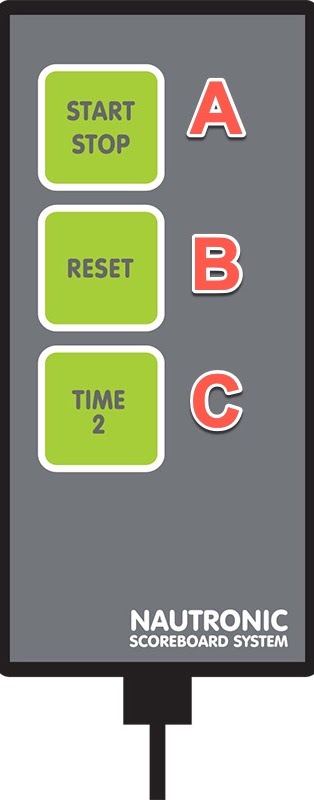
The controller sits at the scorers' table and has 3 buttons:
- Button A: starting and stopping the shot clock.
- Button B: reset to 24 seconds.
- Button C: reset to 14 seconds.
The clock automatically goes blank at the last 24 seconds; no time starts running from then on. During breaks the panel also shows no shot-clock time.
Coupling with the game clock
The controller is coupled to the scoreboard panel. You can set (via set-up, sheet 2) whether the shot clock starts or stops automatically with the game clock — we usually use: automatic start and automatic stop.
Resetting the shot clock to a specific time
At the referees' request:
- Stop the game clock (the timer does this).
- Reset the shot clock so 24 seconds is showing.
- On the score panel, go to the correction menu (button A).
- Choose Adjust shot clock at the bottom (button B).
- Set the desired time and confirm with OK.
FAQ
The controller no longer responds?
Check the cable connection. If that doesn't help, connect the backup controller to the score panel.
Where can I find the shot clock rules?
For the shot-clock rules we refer to the official rulebook (page 32).
Where can I find the FIBA instructions for the shot clock?
For the FIBA instructions for the shot clock we refer to the FIBA Table Officials Manual (page 85).
Part 4 of 8
Basketball.nl app — match sheet
There are 2 laptops at the scorers' table: a Chromebook for all teams, and an HP laptop with FIBA DSS for BNXT games and international games. We use the Chromebook as the tablet for FOYS's Digital Match Sheet (DWF).
Chromebook
To start up the Chromebook, use the DWF account — the login details are on the passwords page. Then open the Basketball.nl app via Chrome and log in with the club GET United. Those login details are also on the passwords page.
HP laptop
This laptop has a local FIBA DSS account you can log in with. Open the FIBA DSS application from the desktop. Passwords for both accounts are on the passwords page on this site.
The FOYS digital match sheet
We think the app is fairly self-explanatory, but if you need more information we'd point you to the Dutch Basketball Federation's manual. If you have questions about it, ask Alexander first.
FIBA DSS
Training is available for using FIBA DSS. In addition, a FIBA Table Officials certificate is required for international games. More info in this FIBA manual.
FAQ
Where can I find the FIBA instructions for the match sheet?
For the FIBA instructions for the match sheet we refer to the FIBA Table Officials Manual (page 22).
Part 5 of 8
LED boarding
Note: the LED boarding may only be switched on by Jeroen Guldemond, Merijn Guldemond, Steven Teunissen or Alexander Simin.
Using the LED boarding must be rented separately from de Kooi. This is currently arranged for games of Dreamfields Dolphins, Lekdetec and Yoast United.
Switching on
- Get the LED boarding's power cable out from under the stand.
- Connect the power plug to the socket — make sure you screw it in properly.
- Go to the breaker box and activate both groups (with a 5-second pause in between) to power up the LED. The panels will light up one by one.
- Walk to the LED controller at the scorers' table, on the visitors' bench side.
- Switch on the switch on top of the controller.
- Switch on the PC using the switch behind the right-hand cover of the rack.
- Open the Kooi application (recognisable by the red stop sign).
- Open the playlist
Kooi.plyand choose the right playlist. - Press the play button labelled next to start the playlist.
FAQ
One panel shows no picture?
Check the connections coming from the panels on the sides and see if that improves things.
A whole unit (on the hospitality-platform side) shows no picture?
A breaker under the podium has probably tripped. Crawl under the podium on the players' bench side (short side) — you'll find a distribution box there to switch the group back on.
The wrong image (logo) is shown on the short unit in front of the scorers' table?
Then the wrong centreline is set in Lekdetec's playlist — it's probably showing
Dreamfields Dolphins instead, or vice versa. Close the application, open the
Animation folder on the desktop and find the two .mov files starting
with "Centreline" (with LEK or DDD after it). Rename the wrong file: first remove the old
file's suffix, then add it to the other file. Restart the application — the centreline will
then be correct.
How are the panels wired?
In series, which makes it redundant. Communication primarily runs from the corner at the visitors' bench via the short side, and from the scorers' table (on the visitors'-bench side) along the long side to the short side (podium).
Part 6 of 8
Livestream
For livestreaming, the Arena uses automatic streaming cameras. We have a partnership with Keemotion for this. Games are set up automatically in the KeeMotion Sporthub by the organisation. Games are streamed to United Basketball's YouTube channel.
FAQ
I'd like to record a friendly game — how do I do that?
You can request this by contacting Alexander Simin.
How can I download a game for analysis?
You can use a YouTube downloader for this. You can't do this yourself from within the software — if you need a download, contact Steven Teunissen.
Is an Instant Replay System available?
For the current levels this isn't necessary. It's technically possible, but it may not be used.
Can we also record training sessions?
Yes, that's possible, but at extra cost. If this is needed, contact Steven Teunissen.
Part 7 of 8
FIBA LiveStats (Scouting)
Match statistics must be kept for BNXT and WBL games. For this there is a PC at the far right of the scorers' table (as seen from the court). This PC may only be used for scouting.
Scouting requires the FIBA LiveStats application; it's already installed. If the application asks to update while starting up, always do this.
Before the game
- Start the computer (the login is on the passwords page).
- Check the Windows Updates — are they up to date? If not, update them before you begin.
- Check that the printer works.
- Check the statistics mailbox.
- Start FIBA LiveStats and open the game.
- Make sure the referees are filled in in the game settings.
- Log in with the correct FIBA Statistician Accounts.
After the game
- Save the boxscore and the play-by-play as PDF from the software.
- Email the PDFs to the right contacts (see the FAQ below).
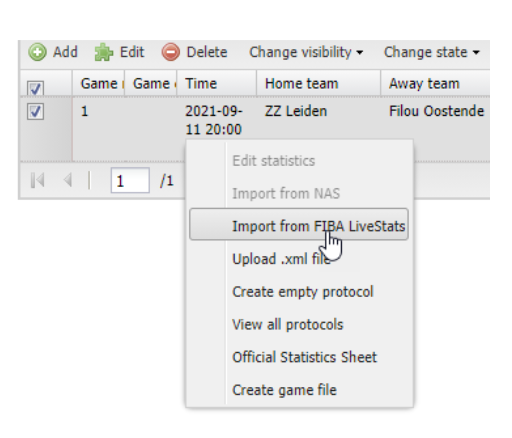
-
Upload the game to FIBA Organizer (BNXT
or WBL) via
Import from FIBA LiveStats.
FAQ
Is there a manual available for scouting?
Yes: the information is in the FIBA Statisticians Manual or the instructions from Genius Sports.
Where can I find the login details for FIBA Organizer?
These are on the passwords page.
Is training available for scouting?
Yes, the BNXT League organises a workshop on keeping stats every year. You can find the recent recording via this link.
Do I need to create an account for scouting?
Yes, you need a FIBA Statistician Account. You can create one here for free, even if you don't have a licence.
Where can I find the license keys for the games?
These are updated every year, but can be found on the passwords page.
What if something goes wrong while scouting?
That can happen — try to fix it as quickly as possible and keep the contact person in the loop:
- BNXT: Steven Teunissen, +31 6 48 16 00 22, s.teunissen@bnxtleague.com
- NBB: Steven Teunissen, +31 6 48 16 00 22, steven.teunissen@basketball.nl
Who should the stats be emailed to after the game?
From the club: the coaches, the opposing coach, steven.teunissen@getunited.basketball and any press.
From the BNXT: s.teunissen@bnxtleague.com, s.piet@bnxtleague.com, voets@hotmail.com.
From the WBL: steven.teunissen@basketball.nl, voets@hotmail.com.
Is a mail account available from the club?
Yes: it's statistics@getunited.basketball. The password is on the passwords page.
Part 8 of 8
Ticketing
The contact person for ticketing is Steven Teunissen. Access to CM is limited because of the personal data available there.
Ticketing is used for the senior teams' games. It can also be used for events at de Kooi.
Instructions
Creating an event
Play: Tickets | Creating an event (plays here once activated; without JavaScript the video opens on YouTube in a new tab)Making it available in the shop
Play: Tickets | Putting tickets in the shop (plays here once activated; without JavaScript the video opens on YouTube in a new tab)Creating a discount campaign
Play: Tickets | Creating a discount code (plays here once activated; without JavaScript the video opens on YouTube in a new tab)Adding an order
Play: Tickets | Adding an order (plays here once activated; without JavaScript the video opens on YouTube in a new tab)Editing an order
Play: Tickets | Changing an order (plays here once activated; without JavaScript the video opens on YouTube in a new tab)Creating a scan service
Play: Tickets | Creating a scan service (plays here once activated; without JavaScript the video opens on YouTube in a new tab)How does the CM scanner app work?
- Download the CM Tickets app from Google Play or the Apple App Store.
- Log in with the login details you were given, or find them on the passwords page.
- Select the desired scan service.
- Click tap to scan and you can start scanning tickets.
- Do you also need to scan people out (for example when people step out for a smoke break)? Then switch on the Check Out toggle in the bottom right.
- An order can also be looked up manually (by name) — for example if someone forgot their season ticket — via the magnifying glass in the top right.
Links
FAQ
Where is the kit for the cash desk kept?
It's kept in a flightcase belonging to the LED boarding, under the VIP podium on the entrance side.
Is cash available?
No, we only accept card (PIN) payments.